Headphones Only Working on One Side? How to Fix It
By LatestSounds Team ·
This article contains affiliate links. If you buy through them we may earn a commission, at no extra cost to you.
When only one side of your headphones plays sound, the cause is often a setting or a plug, not a broken driver. A mono or balance setting, a plug that isn't fully in, a dirty charging contact or an earbud that has lost sync with its partner can all silence one side. Work through the checks below in order and you'll either fix the problem or know whether it's worth repairing.
Quick checklist
Quick fix: Play a track you know is stereo, then check your device's balance slider is centred and mono audio is off. For wired headphones, push the plug all the way in (remove the phone case if needed) and wiggle the cable near the plug and the earcup while listening. For wireless earbuds, clean the charging contacts, charge both buds in the case, forget them in Bluetooth settings, reset them and pair again.
- Test with a different song, app and device.
- Check the balance and mono audio settings.
- Wired: check the plug, the socket and any adapter.
- Wired: find a cable fault with the wiggle test.
- Wireless: charge both buds and clean the contacts.
- Wireless: re-sync or reset the earbuds.
- Clean the speaker mesh and ear tips.
- Decide whether to repair or replace.
Common causes at a glance
| Symptom | Likely cause | Fix |
|---|---|---|
| One side silent on one device only | Balance or mono setting, app EQ | Check the settings (below) |
| One side silent on every device (wired) | Damaged cable, plug or driver | Wiggle test, then repair or replace |
| Sound cuts in and out when the cable moves | Broken wire near the plug or earcup | Replace the cable or have it resoldered |
| Voices missing, only music and effects left | Wrong plug type (TRRS/TRS) or plug half-inserted | Push the plug in fully, try another adapter |
| One earbud won't connect | Flat battery, dirty contacts, lost sync | Clean, charge, reset |
| One earbud quieter than the other | Wax on the mesh, balance setting | Clean the mesh, centre the balance |
Step 1: rule out the source
First check whether the audio itself is the problem. Some podcasts, older recordings and video calls are recorded with sound on only one channel.
- Play a stereo test track or a well-known stereo song.
- Try a different app, such as a music player instead of a browser tab.
- Connect the headphones to another phone or computer.
If the headphones play both sides on another device, the problem is in the settings of your original device. If they don't, the problem is in the headphones.
Step 2: check balance and mono audio settings
A balance slider moved to one side, or an accessibility setting you've forgotten about, is the easiest fix. These menu paths were current in September 2026, but the wording can change slightly between OS versions.
iPhone and iPad
- Open Settings > Accessibility > Audio & Visual.
- Set the Balance slider to the middle.
- Check whether Mono Audio is on. Mono sends the same sound to both sides, so turning it on is a good temporary workaround if one side is dead, and a useful test: if a sound appears on the silent side with mono on, the earbud works and the problem is the stereo mix or the source.
Apple's troubleshooting for an AirPod that sounds quieter than the other uses the same Balance slider.
Android
- Pixel and most Android 15/16 phones: Settings > Accessibility > Audio adjustment (or Audio), then check Mono audio and centre the Audio balance slider.
- Samsung Galaxy: Settings > Accessibility > Hearing enhancements, then check Mono audio and Left/right sound balance. Samsung has separate sliders for the phone speaker and for connected audio devices, so check both.
Also check the equaliser in the headphone app (Galaxy Wearable, Sony Sound Connect, the Bose app and others). Some apps have their own balance or hearing-profile settings.
Windows 11
- Go to Settings > System > Sound, select your headphones under Output, and check that the Left channel and Right channel volumes match (usually 100).
- Go to Settings > Accessibility > Audio and check the Mono audio toggle.
- Under Output settings, check that Format is a two-channel (stereo) format.
- Update the audio driver (Realtek or similar) from your PC maker's support site if one side still drops out on wired headphones.
Mac
- Go to System Settings > Sound > Output, select your headphones, and centre the Balance slider.
- Go to System Settings > Accessibility > Audio and check Play stereo audio as mono.
Wired headphones: plug, socket, adapter and cable
Push the plug all the way in
A 3.5 mm plug that stops a millimetre short connects only part of the signal. The result is one side missing, or a thin sound with the vocals gone. Phone cases are the usual reason: a thick case can stop the plug before it clicks in. Take the case off and push firmly until you feel it seat.
Clean the socket
Pocket lint packs into headphone sockets over time. Turn the device off, look into the socket with a torch, and gently pull out lint with a wooden toothpick or blow it out with a can of compressed air. Don't use metal pins, which can scratch or short the contacts. Wipe the plug with a dry cloth, or a cloth slightly dampened with isopropyl alcohol, and let it dry before plugging it back in.
Check for TRS, TRRS and adapter problems
Headphone plugs have rings that separate the left, right, ground and (on headsets with a mic) microphone contacts:
- TRS (two rings/stripes on the plug): stereo audio, no microphone.
- TRRS (three rings): stereo plus a microphone, as on most phone headsets.
A TRRS headset in an older TRS-only socket, or a mismatched splitter or adapter, can put the ground and mic contacts in the wrong place. You'll get sound on one side only, or a hollow sound with the vocals missing. Try the headphones without adapters, or use an adapter built for your plug type. For USB-C or Lightning dongles, try a different dongle: cheap ones fail often, and phones without a headphone jack rely entirely on the dongle's built-in converter.
Find a cable fault with the wiggle test
- Play music at a moderate volume.
- Slowly bend the cable just below the plug, then along its length, then where it enters each earcup or earbud.
- If the dead side crackles or comes back at a certain spot, a wire is broken there.
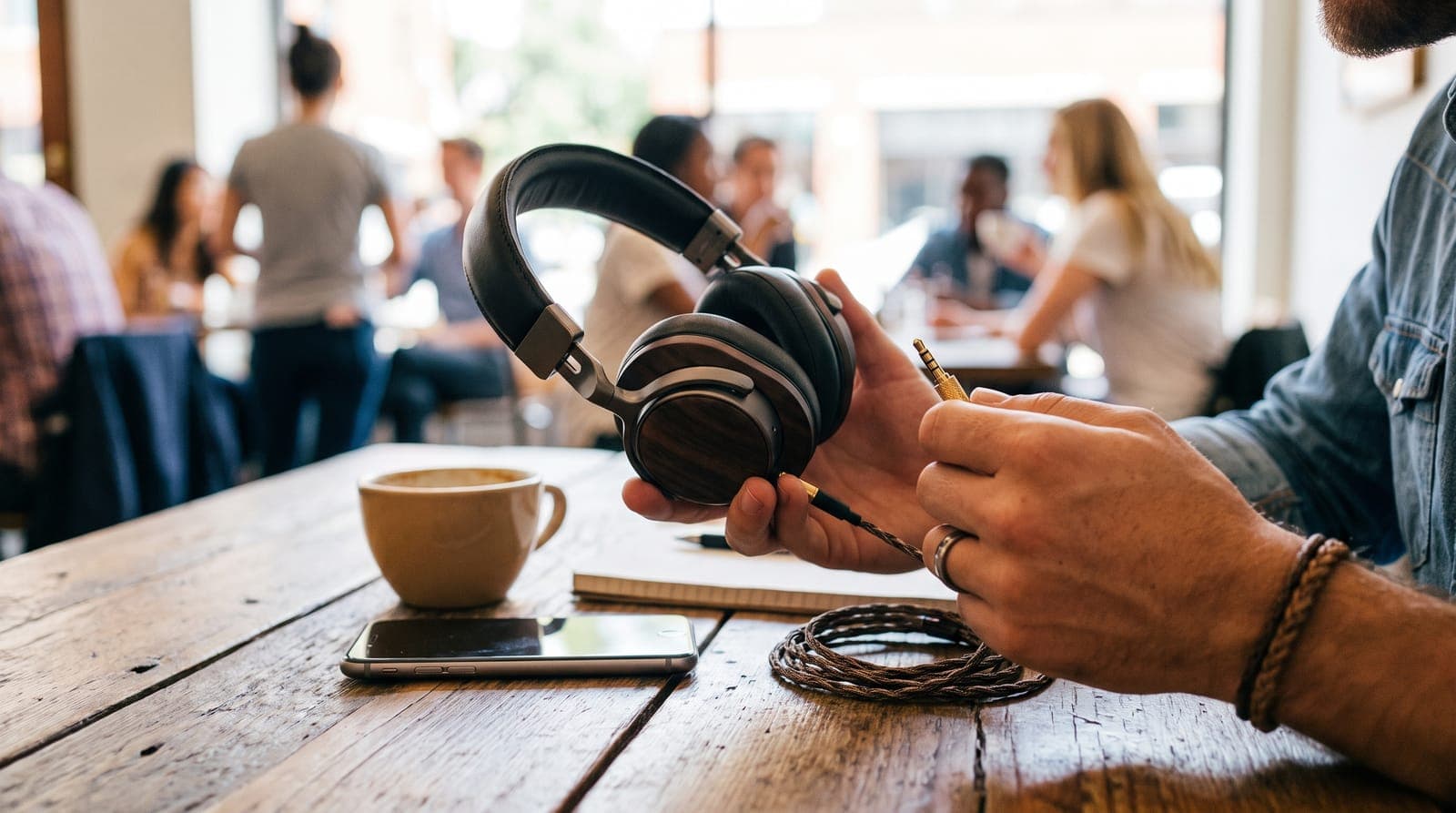
Breaks most often happen within a few centimetres of the plug or the earcup, where the cable bends most. If the headphones have a detachable cable, swap it for a spare. That's the cheapest fix there is. If the cable is built in, a repair shop can shorten the cable and fit a new plug, which is often worth it for expensive headphones and rarely worth it for cheap ones.
If the wiggle test finds nothing and one side stays silent on every device and cable, the driver (the speaker inside the earcup) has probably failed.
Wireless earbuds and headphones
Charge both earbuds and clean the contacts
True wireless earbuds charge through small metal contacts. If earwax, skin oil or pocket dust stops one bud from charging, it goes flat while the other keeps working.
- Check both buds' battery levels in the phone's battery widget or the brand's app.
- Clean the contacts on each bud and inside the case with a dry, lint-free cloth or a clean, dry cotton swab. Apple suggests a soft, dry brush for the charging port and warns against putting anything into the ports or using sharp objects.
- Put both buds back and check that the case light or the app shows both charging.
Apple's checklist for an AirPod that isn't working is: make sure the case is charged, clean the charging port, charge both AirPods for 30 seconds, then test the problem AirPod on its own with the other one closed in the case.
Re-sync or reset the earbuds
Each earbud in a pair has its own Bluetooth connection, and one can lose sync with the other. A reset re-links them.
- Forget the earbuds in your phone's Bluetooth settings.
- Put both buds in the case.
- Reset them using the manufacturer's method:
- AirPods Pro 2 and older AirPods: with the lid open, hold the setup button on the back of the case for about 15 seconds until the light flashes amber, then white.
- AirPods 4 and AirPods Pro 3: double-tap the front of the case three times, each time the light changes, then wait for amber, then white.
- Sony WF-1000XM6 / WF-1000XM5: hold the button on the back of the open case for about 15 seconds, and release it within five seconds of the orange light starting to flash.
- Samsung Galaxy Buds: in the Galaxy Wearable app, go to Earbuds settings > Reset. Both buds need to be connected.
- Bose QuietComfort Ultra Earbuds (2nd Gen): hold the case button for 25 seconds, three times in a row, until the light blinks amber.
- Pair them again.
Our guide to why headphones keep disconnecting has more detail on reset methods and Bluetooth fixes.
Over-ear wireless headphones
In a pair of Bluetooth over-ear headphones, a single dead earcup is rarely a Bluetooth issue, because both drivers run from the same circuit board. Check the balance settings, update the firmware in the brand's app and reset the headphones. If one side is still silent, it's likely a driver or internal cable fault, which is a warranty repair.
Clean the speaker mesh and ear tips
A layer of earwax on an earbud's mesh can make one side sound much quieter, or muffled, without it being broken.
- Remove the silicone or foam tips and wash silicone tips in mild soapy water. Rinse and let them dry fully.
- Brush the mesh gently with a dry, soft-bristled brush, holding the earbud mesh-side down so debris falls out rather than in.
- Don't push liquid, pins or cotton swabs into the mesh, and don't run earbuds under water.
For step-by-step instructions for different headphone types, see our guide to cleaning and maintaining your headphones.
Repair or replace?
| Situation | Best option |
|---|---|
| Under warranty, any fault | Manufacturer repair or replacement |
| Detachable cable is faulty | Replace the cable |
| Built-in cable broken near the plug, expensive headphones | Local repair shop, new plug |
| One lost or dead earbud (e.g. AirPods, Galaxy Buds) | Ask the manufacturer about a single replacement bud |
| Dead driver in cheap headphones or earbuds | Replace the headphones |
| Earbud battery worn out after several years | Compare the battery service cost with a new pair |
Apple and Samsung will replace a single earbud, and other brands may do the same through their service centres, but out-of-warranty prices are often a large share of the price of a new pair, so compare before you pay. If it's time for a new pair, see our picks for the best headphones under $100 and the best headphones for working out. Sweat and cable strain during exercise are two of the most common reasons one side stops working.
Frequently asked questions
Why is only one side of my headphones working?
The most common causes are a plug not fully inserted, a balance or mono setting, a broken wire near the plug or earcup, or, for wireless earbuds, a bud that isn't charging or has lost sync. Test on another device first to find out whether the problem is in the headphones or in the source device.
How do I fix headphones that only work on one side without buying new ones?
Check the balance and mono settings, clean the socket and plug, and swap the cable if it's detachable. For earbuds, clean the charging contacts, charge both buds and reset them. If a wiggle test shows the break is near the plug, a repair shop can often fit a new plug for less than a new pair.
Why does only one AirPod work?
Usually the silent AirPod is flat or dirty. Apple recommends cleaning the case's charging port, charging both AirPods for 30 seconds, then checking that Balance is centred in Settings > Accessibility > Audio & Visual. If one AirPod still doesn't play, reset them.
Can a dead headphone driver be fixed?
Sometimes, on repairable over-ear headphones where the driver can be replaced. For most earbuds and sealed designs a repair isn't practical, and warranty service or replacement is the realistic option.
Why do I only hear music but no vocals in my headphones?
That hollow, vocals-gone sound usually means the plug isn't fully inserted, or a TRRS headset is in a TRS socket or adapter that connects the pins the wrong way. Push the plug in fully, remove the phone case and try without adapters.
Is mono audio a good workaround?
Yes, as a temporary fix. Turning on mono audio sends the full mix to both sides, so you won't miss anything while you wait for a repair. It's also a helpful accessibility setting if you have better hearing in one ear.
Shop replacement headphone cables on Amazon
Sources
- Apple Support: If your left or right AirPod isn't working
- Apple Support: How to reset your AirPods and AirPods Pro
- Apple Support: How to clean your AirPods Pro
- Apple Support: Change Audio settings for accessibility on Mac
- Apple Support: Adjust audio settings on iPhone
- Google Android Accessibility Help: Use accessibility features on Android
- Samsung Support: Galaxy phone and tablet hearing enhancement features
- Samsung Support: How to restart or reset your Samsung earbuds
- Microsoft Support: Fix Bluetooth audio only playing in one channel
- Microsoft Support: Make Windows easier to hear
- Sony Help Guide: WF-1000XM6 initializing the headset
- Bose Support: Resetting QuietComfort Ultra Earbuds (2nd Gen)