Why Do My Headphones Keep Disconnecting? 15 Fixes
By LatestSounds Team ·
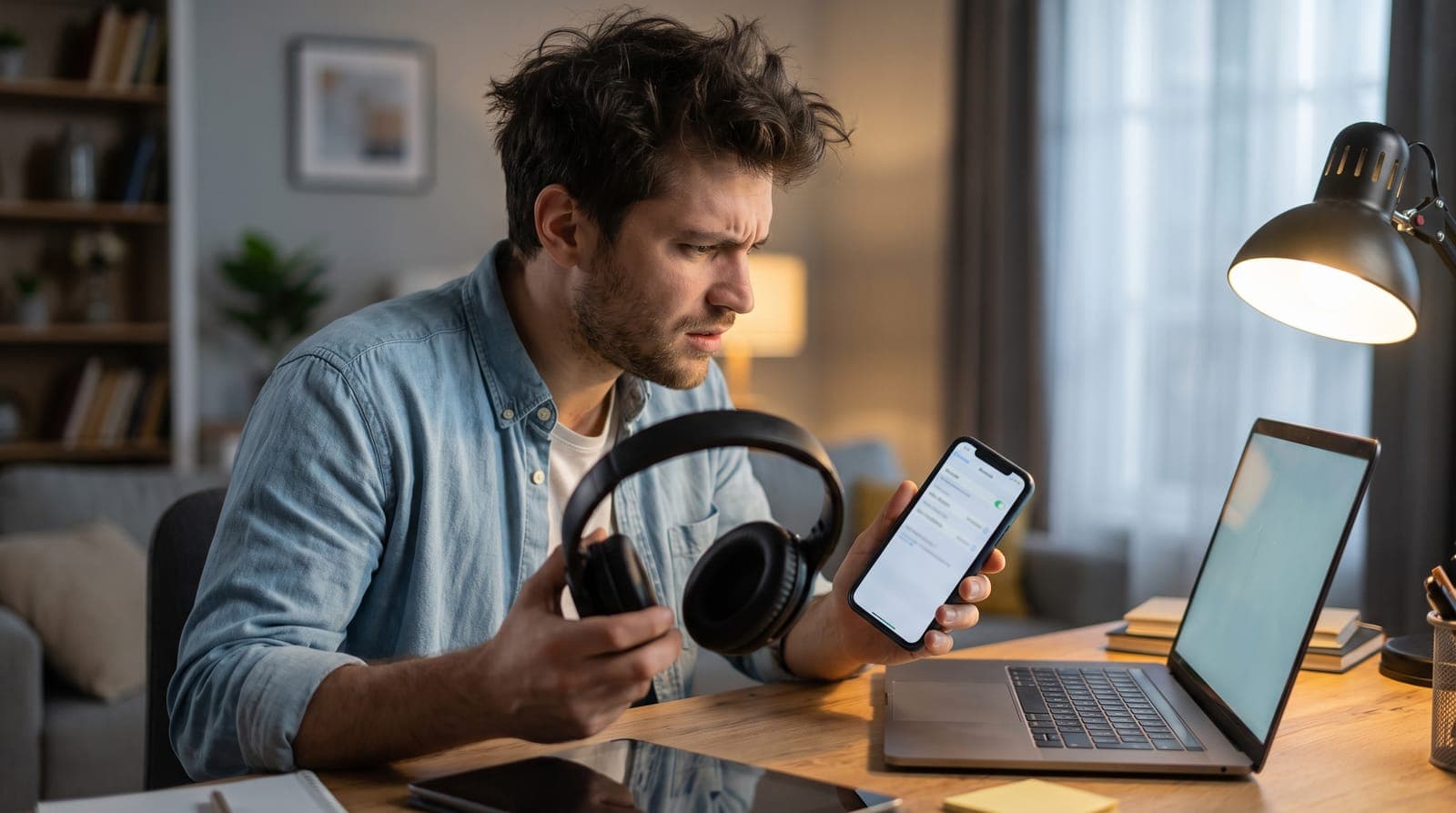
Bluetooth headphones that keep disconnecting, cutting out or reconnecting on their own are rarely broken. Usually the cause is range, interference, low battery, two devices fighting over the connection, or a setting that pauses playback. The fixes below start with the quickest and finish with resets, Windows driver fixes and warranty claims.
Quick fix: Charge the headphones and the phone or laptop. Stay within a few metres with no walls in between, and move away from Wi-Fi routers, microwaves and USB 3 hubs. Turn off multipoint or automatic switching if you use more than one device. Still dropping? Forget the headphones in Bluetooth settings, restart both devices and pair again.
Symptom, likely cause and fix
| Symptom | Likely cause | Try first |
|---|---|---|
| Audio stutters or cuts out for a second | Range, body blocking, 2.4 GHz interference | Fixes 1, 3 |
| Drops only in one room or at your desk | Wi-Fi router, USB 3 hub or dock, microwave | Fix 3 |
| Disconnects and reconnects repeatedly | Low battery, multipoint, automatic switching | Fixes 2, 4 |
| Keeps pausing without disconnecting | Ear detection, wear sensor, sleep detection | Fix 5 |
| Drops when the phone screen turns off | Battery optimisation | Fix 6 |
| Drops only on a laptop or PC | Adapter power saving, driver, Hands-Free profile | Fixes 11 to 13 |
| Drops on every device, even fully charged | Hardware fault | Fixes 14, 15 |
Fixes 1 to 4: range, battery, interference and extra devices
1. Move closer and remove obstacles
Bluetooth headphones are generally designed to work within about 10 metres (33 feet), but walls, doors and your own body cut that down. A phone in a back pocket or bag, on the opposite side of your body from the earbud that holds the main connection, can cause short dropouts even when you're standing still. Put the phone in a front pocket or on the desk in front of you and see if the problem goes away.
2. Charge both devices
Headphones close to empty often cut out before they shut down, and earbuds can drop when one bud runs flat before the other. Charge them fully and check the level in your phone's battery widget or the brand's app. Charge the phone or laptop too, since low-power modes can limit Bluetooth.
3. Get away from 2.4 GHz interference
Bluetooth shares the 2.4 GHz band with 2.4 GHz Wi-Fi, microwave ovens, wireless mouse and keyboard dongles and baby monitors. USB 3 ports, hubs and docks can also give off radio noise in the 2.4 GHz range, which is why Bluetooth often misbehaves when an external drive sits next to a laptop.
- Move away from the router, or connect the laptop to your router's 5 GHz or 6 GHz network.
- Don't use the headphones right next to a running microwave.
- Plug USB 3 drives and hubs into a port on the far side of the laptop, or use a short extension cable.
- In crowded places such as stations and gyms, some dropouts are unavoidable.
4. Turn off Bluetooth on devices you aren't using
Most headphones remember several devices and reconnect to whichever one grabs them first, so a tablet or laptop waking up nearby can steal the connection.
- Multipoint headphones (connected to two devices at once) can switch sources when the second device plays a notification. On the Sony WH-1000XM6 the setting is "Connect to 2 devices simultaneously" in the Sony Sound Connect app. Bose and Samsung have similar options in their apps. Turn multipoint off to see if the dropouts stop.
- AirPods automatic switching: open Settings, tap your AirPods, then under Connect to This iPhone choose When Last Connected to This iPhone instead of Automatically. Do the same on your iPad and Mac.
Fix 5: ear detection, wear sensors and sleep detection
If playback pauses but the headphones stay connected, the cause is usually a sensor, not Bluetooth.
- AirPods: Automatic Ear Detection pauses audio when it thinks an AirPod has come out, which can happen with a loose fit, a hood or a dirty sensor. On iPhone, go to Settings, tap your AirPods, and turn off Automatic Ear Detection (tap Audio & Routing first if you don't see it). On a Mac it's in System Settings under your AirPods' name.
- Sleep detection: iOS 26 added Pause Media When Falling Asleep for AirPods Pro 2, AirPods Pro 3 and AirPods 4. If you lie still on the sofa, it can pause your podcast. It's on the same settings page.
- Sony, Bose, Samsung and others: most flagship models have a wear-detection or "pause when taken off" option in their app. Turn it off, or clean the sensor and adjust the fit.
Our AirPods Pro 3 review explains which sensor features are worth keeping on.
Fix 6: stop battery optimisation cutting the connection
Android can stop background apps to save power, and some manufacturers are more aggressive than others. If audio drops when the screen turns off:
- Open Settings > Apps, and choose your music, podcast or headphone app (tap See all apps if needed).
- Tap App battery usage (on Samsung, Battery) and choose Unrestricted for that app.
- Turn off Battery Saver or Power Saving mode while you test.
Menu names vary by manufacturer and Android version. Google recommends keeping most apps on Optimized, so only change the apps you use for playback.
Fixes 7 to 9: restart, update and re-pair
7. Restart both devices
Turn the headphones off and on, then restart the phone or computer. For earbuds, close both buds in the case for about 30 seconds (Apple's advice) or at least seven seconds (Samsung's) before taking them out again.
8. Update firmware and software
Firmware updates often include connection fixes. AirPods update automatically while charging near a connected iPhone, iPad or Mac. Sony (Sound Connect), Bose (Bose app), Samsung (Galaxy Wearable) and most other brands deliver firmware through their app, so keep the headphones charged and close to the phone while it installs. Install the latest iOS, Android, macOS or Windows update as well.
9. Forget the headphones and pair them again
A corrupted pairing record is a common cause of disconnect-reconnect loops.
- iPhone: Settings > Bluetooth, tap the info button next to the headphones, then Forget This Device.
- Android (Pixel): Settings > Connected devices, tap the gear icon next to the headphones, then Forget. On Samsung, start from Settings > Connections > Bluetooth.
- Mac: System Settings > Bluetooth, click the info button next to the headphones, then Forget This Device.
- Windows 11: Settings > Bluetooth & devices > Devices, click the three-dot menu next to the headphones, then Remove device.
- Put the headphones in pairing mode and pair them as if they were new.
Google's Pixel help also suggests removing old devices you no longer use. Pixel 6 and later phones have Bluetooth diagnostics under Connected devices.
Fix 10: reset your headphones
A factory reset wipes the headphones' own list of paired devices and settings. Forget them on every device first, then reset, then pair again.
| Headphones | Reset method (from the manufacturer's support pages) |
|---|---|
| AirPods (1st to 3rd gen), AirPods Pro, AirPods Pro 2 | In the case, lid closed for 30 seconds, then open the lid and hold the setup button on the back for about 15 seconds until the light flashes amber, then white. |
| AirPods 4, AirPods Pro 3 | Lid open, light on: double-tap the front of the case, double-tap again when it flashes white, and a third time when it flashes faster. Wait for amber, then white. |
| AirPods Max | Hold the noise control button and the Digital Crown for about 15 seconds until the light flashes amber, then white. |
| Sony WH-1000XM6 | With the headphones off, hold the power and NC/AMB buttons together for about 10 seconds. The blue light flashes four times. |
| Sony WF-1000XM6, WF-1000XM5 | Buds in the open case: hold the button on the back of the case for about 15 seconds, and release it within five seconds of the orange light starting to flash. The green light flashes four times. |
| Bose QuietComfort Ultra Headphones (2nd Gen) | Hold the Power/Bluetooth button, plug a powered USB-C cable into the left earcup while still holding it, wait two seconds, then let go. |
| Bose QuietComfort Ultra Earbuds (2nd Gen) | Remove them from Bluetooth and the Bose app. Buds in the open case: hold the case button for 25 seconds until the light turns off, three times in a row. The light blinks amber, then slowly blue. |
| Samsung Galaxy Buds (Buds+, Buds2 and later) | With both buds connected, open the Galaxy Wearable app and go to Earbuds settings > Reset. |
Sony and Bose also have a softer reset that keeps your pairings. On the WH-1000XM6, hold the power and NC/AMB buttons for about five seconds while charging. Bose's newer earbuds also have a soft reset done from the charging case – the exact button timing varies by model, so follow Bose's support page for yours. For other models, search the brand's support site for the model name plus "reset", because button combinations change between generations.
Fixes 11 to 13: Windows laptops and PCs
Microsoft's Bluetooth troubleshooting guide covers the basics: check Bluetooth is on under Settings > Bluetooth & devices, turn off Airplane mode, and run the Bluetooth troubleshooter in the Get Help app. If headphones still drop from your laptop, try these.
11. Turn off Bluetooth power saving in Device Manager
- Right-click the Start button and choose Device Manager.
- Expand Bluetooth, right-click your adapter (usually Intel, Realtek, MediaTek or Qualcomm) and choose Properties.
- On the Power Management tab, clear Allow the computer to turn off this device to save power, then click OK.
Some adapters don't have a Power Management tab. In that case, check the laptop maker's power utility.
12. Update or reinstall the Bluetooth driver
- In Device Manager, right-click the adapter and choose Update driver > Search automatically for drivers.
- Check Settings > Windows Update > Advanced options > Optional updates and your laptop maker's support site, which often have newer Bluetooth and Wi-Fi drivers. On many laptops the two share one chip.
- If it still drops, right-click the adapter, choose Uninstall device and restart. Windows reinstalls the driver.
13. Sort out Hands-Free audio switching
When an app such as Teams, Zoom or Discord opens the headset's microphone, Windows switches to the Hands-Free profile. The sound turns flat and mono, and the switch can look like a disconnect.
- Under Settings > System > Sound, pick the stereo headphones (not the "Hands-Free" entry) as output, and use the laptop's built-in microphone as input.
- To turn Hands-Free off completely, go to Settings > Bluetooth & devices > Devices > More devices and printer settings, right-click the headphones, choose Properties, and on the Services tab clear Handsfree Telephony. The headset mic stops working in Windows until you tick it again.
Menu wording depends on your Windows 11 version and Bluetooth driver.
Mac, iPhone and Android extras
- Mac: USB 3 hubs and docks are a well-known source of Bluetooth interference. Unplug them and test. Turn off AirPods automatic switching (Fix 4) if they keep jumping between your iPhone and Mac.
- iPhone: if calls drop but music doesn't, make sure Settings > Accessibility > Touch > Call Audio Routing is set to Automatic (menu names can shift slightly between iOS versions). As a last resort, Settings > General > Transfer or Reset iPhone > Reset > Reset Network Settings clears all Bluetooth pairings and saved Wi-Fi networks.
- Android: if you've chosen a high-bitrate codec such as LDAC, or a "sound quality priority" mode in the headphone app, switch to a connection-priority setting. Higher bitrates drop out more easily in busy radio environments.
Fixes 14 and 15: is it a hardware fault?
14. Test with another device
Pair the headphones with a different phone or computer, and pair different headphones with your original device. If the headphones drop out everywhere, they're at fault. If only one device has the problem, updates, driver fixes or a network reset on that device should solve it.
15. Warranty and repair
A fault that remains on a fully charged, updated and reset pair points to hardware: a worn battery (common in earbuds a few years old), a damaged antenna after a drop, or water damage. Most major brands include at least a one-year limited warranty, and consumer law where you live may give you more. Contact the manufacturer with the serial number and proof of purchase before opening anything up.
If it's time for a new pair, start with our guides to the best noise-cancelling earbuds and the best headphones under $100, or read whether wireless headphones are worth it. If only one side is dropping out, see headphones only working on one side.
Frequently asked questions
Why do my Bluetooth headphones keep cutting out when I walk?
Your body blocks the signal. With the phone in a back pocket or bag, the signal has to pass through you to reach the earbud, and each step changes the path. Keep the phone in a front pocket on the same side as your primary earbud, or hold it.
Why do my headphones keep disconnecting and reconnecting?
Usually a low battery, a corrupted pairing, or two devices competing through multipoint or automatic switching. Charge them, turn Bluetooth off on devices you aren't using, then forget and re-pair. If the loop continues, reset them.
Why do my headphones keep disconnecting from my laptop but not my phone?
Laptops add adapter power saving, older Bluetooth drivers and USB 3 interference. On Windows, turn off "Allow the computer to turn off this device to save power" for the Bluetooth adapter and update the driver from the laptop maker's site. On a Mac, unplug USB 3 hubs and test again.
Why do my headphones keep pausing?
Almost always a sensor: ear detection, wear detection or, on AirPods with iOS 26, Pause Media When Falling Asleep. Turn those features off in your phone's settings or the headphone app, clean the sensors and check the fit. A touch control brushing against a hood or pillow can also cause pauses.
Can Wi-Fi interfere with Bluetooth headphones?
Yes. Bluetooth and 2.4 GHz Wi-Fi share a radio band. Bluetooth hops between channels to avoid interference, but a busy router nearby can still cause stutters. Using 5 GHz or 6 GHz Wi-Fi reduces the conflict.
Will resetting my headphones delete my settings?
A factory reset (Sony calls it "initializing") removes paired devices and restores default EQ and controls. Sony and Bose also offer a lighter reset that keeps pairings, so try that first.
Sources
- Apple Support: How to reset your AirPods and AirPods Pro
- Apple Support: How to reset your AirPods Max
- Apple Support: Change the settings of your AirPods and AirPods Pro
- Apple Support: Switch your AirPods to another device
- Sony Help Guide: WH-1000XM6 initializing the headset
- Sony Help Guide: WH-1000XM6 resetting the headset
- Sony Help Guide: WH-1000XM6 multipoint connection
- Sony Help Guide: WF-1000XM6 initializing the headset
- Bose Support: Resetting QuietComfort Ultra Headphones (2nd Gen)
- Bose Support: Resetting QuietComfort Ultra Earbuds (2nd Gen)
- Samsung Support: How to restart or reset your Samsung earbuds
- Microsoft Support: Fix Bluetooth problems in Windows
- Dell Support: Bluetooth power save setting causing connectivity issues
- Google Pixel Help: Fix Bluetooth problems
- Google Pixel Help: Keep Adaptive Battery and battery optimization on
- The Eclectic Light Company: USB 3 devices can cause problems with Bluetooth and Wi-Fi